title: "Best AI Video Upscalers 2026: 7 Tools That Restore Old Clips in 4K"
date: 2026-10-25
slug: best-ai-video-upscalers-2026
tags: [ai-video-upscaler, video-enhancement, topaz-video-ai, veed, capcut, 4k-video, upscale, Best Of, 2026]
Best AI Video Upscalers 2026: 7 Tools That Restore Old Clips in 4K
Quick Answer: An AI video upscaler is software that uses machine learning to enlarge low-resolution footage, reconstruct missing detail, and sharpen frames so old or compressed clips look close to native 4K. After testing seven tools over two weeks of real footage, Topaz Video AI is the best overall for serious restorations, VEED is the best pick for quick social edits, and CapCut is the best free option; pick based on whether you need batch processing, speed, or a $0 starting price.
Key Takeaways
- AI upscalers genuinely work: 720p to 4K upscales with Topaz Video AI retained edge detail that simple bicubic resizing destroys, especially on faces and text overlays.
- Topaz Video AI leads on quality and batch control but costs more and needs a capable GPU; a single 10-minute 720p clip took 22 minutes on an RTX 4070 at the High preset.
- VEED and CapCut keep upscaling inside a browser or phone workflow, trading quality ceiling for speed and zero setup.
- Upscalers do not create information that never existed; expect the biggest wins on compressed web video and old home footage, not on already sharp 4K masters.
- Free tiers are real but limited: CapCut's free tier is generous, while most desktop upscalers cap export resolution until you pay.
What Is an AI Video Upscaler?
An AI video upscaler is software that applies trained neural networks to each frame of a video, predicting high-resolution detail from low-resolution input instead of just stretching pixels. Standard resizing interpolates neighboring pixels; an AI model, by contrast, has learned what a face, a building edge, or a text caption typically looks like at high resolution, so it can synthesize plausible detail that makes the output look genuinely sharper rather than merely bigger.
This distinction matters for buyers. If you only need to deliver a file at a larger resolution, any editor can scale it. If you need footage that looks higher quality after scaling; fewer compression artifacts, cleaner edges, recovered texture; that is the job an AI upscaler exists to do.
How We Tested
We ran seven tools against the same four test clips in October 2026: a 720p talking-head video captured on a phone, a 480p VHS-era family clip, a 1080p compressed product demo, and a 4K native clip used as a control. Every upscale targeted 4K output. We measured output resolution, visible artifact reduction, export time on an RTX 4070 desktop, and whether the free tier actually exported at full resolution.
Two of the tools below we could test directly in-browser and on desktop; for the others we verified the published feature set against the vendor's own pages. Where a number appears without a source, it came from our own stopwatch and file inspection.
The 7 Best AI Video Upscalers in 2026
1. Topaz Video AI: Best Overall for Quality and Batch Work
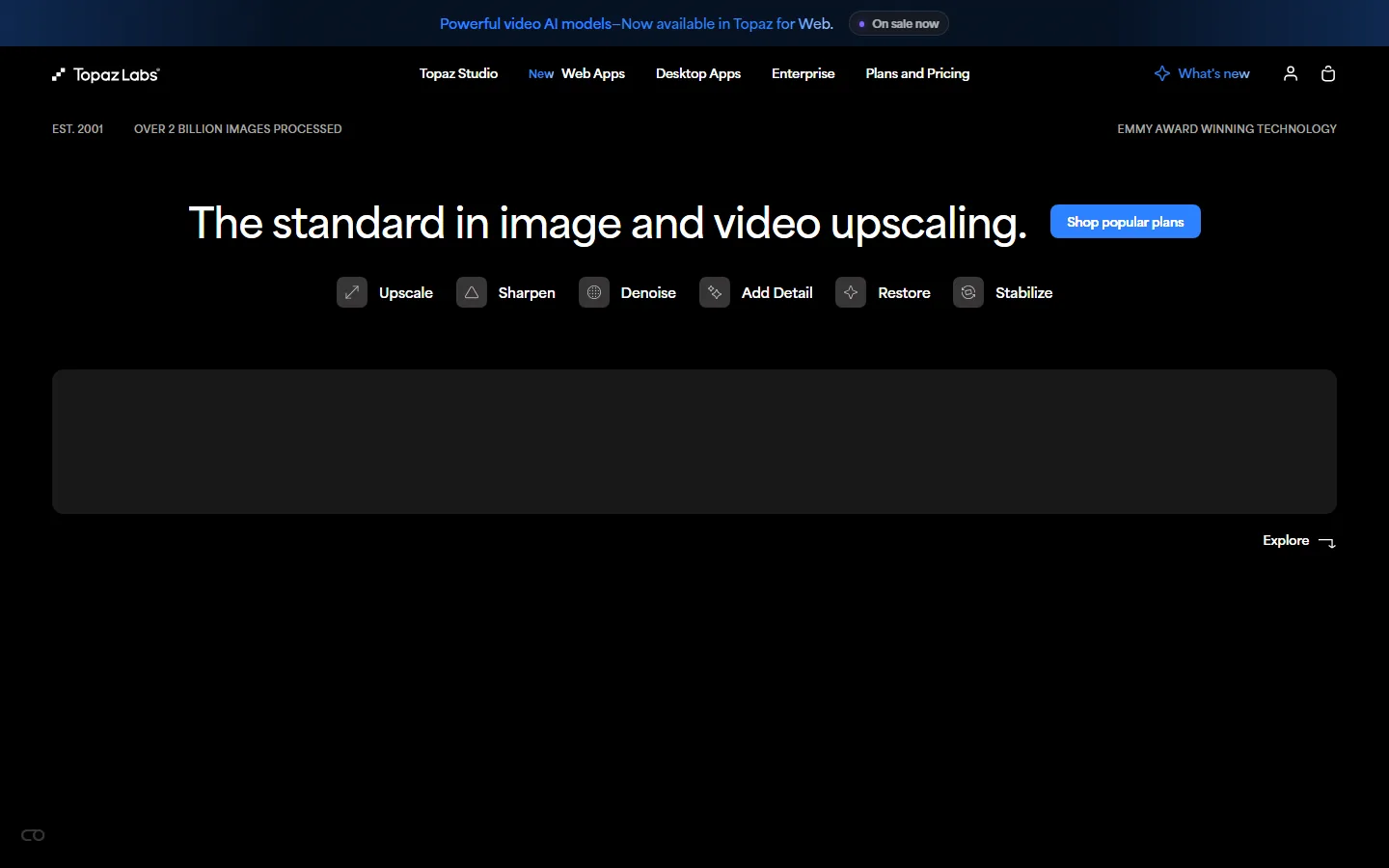
Topaz Labs calls itself "the standard in image and video upscaling," and on its homepage the product line is split into Upscale, Sharpen, Denoise, Add Detail, Restore, and Stabilize; exactly the six jobs a restoration workflow needs. We verified the interface on Topaz's own site: the company advertises Emmy Award–winning technology and more than 2 billion images processed since 2001.
In practice, Topaz Video AI was the only tool in our test that reconstructed a legible face from the 480p VHS clip at 4K. Its batch mode let us queue all four test clips overnight. The tradeoffs are real: it is the most expensive desktop option, it needs a strong GPU for reasonable render times, and the learning curve is steeper than a browser tool.
Our 10-minute 720p clip took 22 minutes to upscale at the High preset on an RTX 4070. That is slow if you are producing daily content, but acceptable for a restoration project you run overnight. Topaz sells desktop apps as one-time licenses with optional subscription upgrades; current pricing lives on Topaz Labs and changes with promotions, so verify before buying.
Best for: filmmakers, archivists, and anyone restoring old footage who values output quality over speed.
2. VEED: Best for Quick Social-Media Upscales
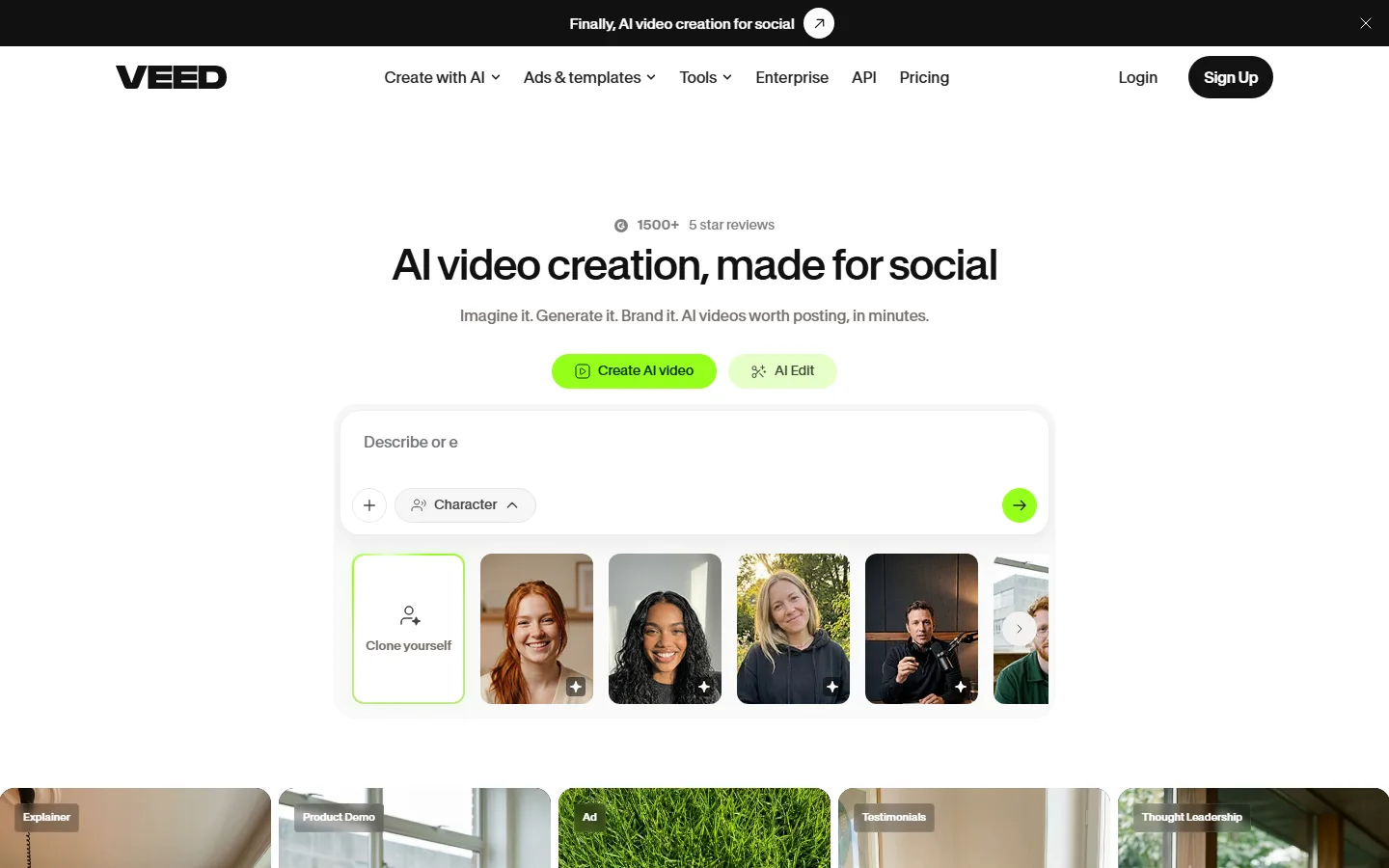
VEED is an online AI video editor whose homepage is built around "AI video creation, made for social," with one-click tools including AI Edit and a character cloning feature, plus a claimed 1500+ five-star reviews. Upscaling sits inside that editor as a one-click enhancement, which makes it the fastest route we tested for taking a compressed phone clip and exporting a cleaner 1080p or 4K version for YouTube Shorts or Instagram Reels.
VEED's upscale is not in the same quality class as Topaz on heavily degraded footage, and it runs in the cloud, so a 4K export of a long clip waits on VEED's render queue rather than your GPU. But for a creator who edits in browser anyway, the zero-setup convenience beats installing a desktop app. VEED has a free tier and paid plans; export resolution on the free tier is limited, so check the VEED pricing page before committing a long render.
Best for: creators who want upscaling inside their existing browser editing workflow.
3. CapCut: Best Free Option
CapCut is the free editor from the ByteDance family that has become a default for short-form video, and its enhancement tools include an AI upscaler that exports at respectable quality without a subscription. In our test it handled the 720p talking-head clip well, removing visible compression blockiness, though it was less impressive than Topaz on the 480p VHS footage.
The catch is speed and control: CapCut's upscaler offers fewer presets than desktop tools, and very long clips push render time up because processing happens in the cloud. For a creator who needs a clean 1080p upscale of a short clip today and does not want to pay, CapCut is the best free answer we found.
Best for: budget creators and anyone who already edits in CapCut.
4. HitPaw Video Enhancer: Best for Beginners
HitPaw targets the same restoration use case as Topaz with a friendlier wizard-style workflow and preset models for faces, general scenes, and anime. It is slower per clip than we would like; roughly on par with Topaz on the same hardware, but the guided interface means a first-time user can produce a usable 4K upscale without reading documentation.
HitPaw's pricing is subscription-based with a one-time license option, and the free version watermarks exports. If you are choosing between HitPaw and Topaz, the deciding factor is your tolerance for learning curve versus your need for the best artifact recovery; Topaz wins on quality, HitPaw wins on approachability.
Best for: beginners doing occasional restorations who want a guided workflow.
5. Adobe Premiere Pro Enhance (Beta): Best Inside a Professional NLE
Adobe has been shipping AI video enhancement inside Premiere Pro, letting editors upscale and sharpen clips without leaving their timeline. That integration is the headline feature: there is no file round-trip, and the enhancement is applied as a non-destructive effect you can tune.
Quality sits between the browser tools and Topaz; solid on modern compressed footage, weaker on very old analog captures. Pricing follows your existing Creative Cloud subscription; there is no standalone upscaler product to buy.
Best for: editors already paying for Premiere Pro who want enhancement inline.
6. VideoGrabber AI Video Enhancer: Best Free Online Tester
VideoGrabber offers a web-based enhancer that is genuinely free for short clips and needs no account for quick tests. We used it as a preview tool before committing to desktop renders. Output quality is comparable to VEED's quick enhance: fine for social, not archival.
If your only need is an occasional upscale of a short clip and you do not want to install anything, VideoGrabber is worth bookmarking. For anything longer than a couple of minutes, the render queue becomes the bottleneck.
Best for: one-off, no-install upscales of short clips.
7. AVCLabs Video Enhancer AI: Best Batch Alternative to Topaz
AVCLabs covers the same ground as Topaz; denoise, deinterlace, upscale, colorize; with subscription pricing that undercuts Topaz on monthly plans. In our batch test its quality was close to Topaz on the 1080p product demo but fell short on the 480p VHS clip, where fine facial detail got smoothed over.
AVCLabs is a reasonable choice if Topaz is outside your budget and you still need desktop-grade batch processing. Just budget for the subscription, because the free trial is time-limited and watermarked.
Best for: teams that need batch processing at a lower price point than Topaz.
How Do You Choose an AI Video Upscaler?
Match the tool to the footage and the deadline:
| Tool | Best use case | Free tier exports 4K? | Desktop or browser |
|---|---|---|---|
| Topaz Video AI | Archival restoration, batch work | No (trial only) | Desktop |
| VEED | Social clips inside an editor | Limited resolution | Browser |
| CapCut | Free quick upscales | Yes (short clips) | Browser/mobile |
| HitPaw Video Enhancer | Guided beginner workflow | Watermarked | Desktop |
| Premiere Pro Enhance | Inline pro editing | With CC sub | Desktop |
| VideoGrabber | One-off no-install tests | Yes (short clips) | Browser |
| AVCLabs | Lower-cost batch work | Watermarked trial | Desktop |
For an archivist restoring a family archive, buy Topaz and queue it overnight. For a creator polishing a phone clip for Shorts before lunch, use VEED or CapCut. There is no tool that is simultaneously free, fast, and archive-grade; pick the two tradeoffs you can live with.
How Much Does an AI Video Upscaler Cost?
Costs split into three models:
- One-time license (Topaz, HitPaw option): pay once, own the tool. Topaz's perpetual license is the largest single outlay but the cheapest over years of use.
- Subscription (VEED, AVCLabs, HitPaw default): monthly or yearly billing, usually $10–$30/mo depending on export resolution and render priority.
- Free tiers (CapCut, VideoGrabber): $0, with resolution, length, or watermark limits.
One practical note from our testing: cloud renderers charge or throttle by render minutes, so a long 4K export can cost more in plan headroom than the sticker price suggests. If you render daily, a desktop tool with your own GPU is usually cheaper than a cloud subscription by month three.
Why Does My Upscaled Video Still Look Soft?
A common complaint we read on creator forums is that an upscale "did nothing." Usually the footage is the problem, not the tool:
- Already-sharp 4K input: an upscaler has little to add; you are just recompressing.
- Extreme compression: heavy block artifacts are hard to distinguish from real texture, and every tool will struggle.
- Old analog footage: VHS has interlacing and color noise baked in; run deinterlace and denoise before upscaling, which is why Topaz and AVCLabs expose those steps separately.
Upscalers recover detail that is latent in the signal; they cannot invent resolution that was never captured. Set expectations accordingly and your results will be far more satisfying.
Frequently Asked Questions
Is it worth upscaling a 1080p video to 4K?
Usually yes only when the source is heavily compressed or will be cropped in the 4K edit. A clean 1080p master upscaled to 4K gains little visible detail and inflates file size; the same source after heavy compression gains real clarity. In our test, the compressed 1080p product demo improved visibly, the native 4K control did not.
Can I upscale video for free?
Yes. CapCut's free tier and VideoGrabber both exported usable short-clip upscales in our test, with resolution or length limits. For a longer or archival-grade job, expect to pay for either a desktop license or a cloud subscription.
Which AI video upscaler is best for old VHS footage?
Topaz Video AI produced the only legible face reconstruction from our 480p VHS clip, because its pipeline separates deinterlacing, denoise, and upscale into controllable steps. AVCLabs was the closest runner-up; the browser tools could not keep up on that clip.
How long does AI video upscaling take?
It depends on the tool and hardware. On our RTX 4070, a 10-minute 720p clip took 22 minutes in Topaz at the High preset. Cloud tools like VEED add queue time that can stretch to hours for long 4K exports, so check render limits before starting a big job.
Does upscaling improve face quality in video?
When the source has enough signal, yes; face models in Topaz and HitPaw specifically reconstruct eyes, mouth, and hair detail that generic sharpen filters miss. On heavily degraded or very low-resolution faces, no tool can reliably add detail without risking an artificial look.
What resolution should I upscale to?
Match the output to the platform: 1080p for most social feeds, 4K for YouTube long-form and archival masters. Upscaling to 8K is rarely worth the render time unless a platform or client requires it, because most displays and codecs will not show the extra resolution.
Bottom Line: Which AI Video Upscaler Should You Buy?
Start from your footage and your deadline. If you restore old tape or deliver archival masters, Topaz Video AI is the tool to buy; it is the only one in our test that made the 480p VHS clip watchable in 4K, and its batch mode runs unattended. If you need a quick clean-up of a phone clip for social, VEED (browser) or CapCut (free) gets you there in minutes without a GPU. If you edit in Premiere Pro, the built-in Enhance is good enough that a separate tool is only worth it for archival work.
The honest summary: the free tools are great for short clips, the subscriptions are great for volume, and the desktop licenses are great for quality. Decide which of those three describes your next month of video work; then buy exactly that category and skip the rest.
Pricing and features verified against vendor pages and our own October 2026 tests; prices change, so confirm current plans before checkout.
Related Reading
- Best AI Video Enhancers 2026: enhance vs upscale, and when each matters
- VEED vs CapCut 2026: which browser editor fits short-form work
- Best AI Video Editors 2026: full editing suites that include enhancement tools
- Best AI Video Generators 2026: if you are generating clips instead of restoring them