An AI video editor is software that uses machine learning to automate editing tasks such as cutting, captioning, background removal, and audio cleanup, so a beginner can produce a polished video without learning a full timeline editor. In 2026 the market splits into free assisted editors such as CapCut and VEED, and generative tools such as Runway that create footage from text, and this guide tells you which to learn first.
Quick Answer: Which AI Video Editor Should a Beginner Use?
Start with CapCut if you make short social videos, because it is free, exports up to 4K with no watermark, and has auto-captions with 92 to 95 percent accuracy. Use VEED if you want a browser editor with no install and team-friendly sharing. Use Descript if you edit long videos and want to cut by deleting text in a transcript. Avoid paying for generative video until you have a specific need, because the credit systems are the part beginners get burned by.
Why Is CapCut the Default Free Choice?
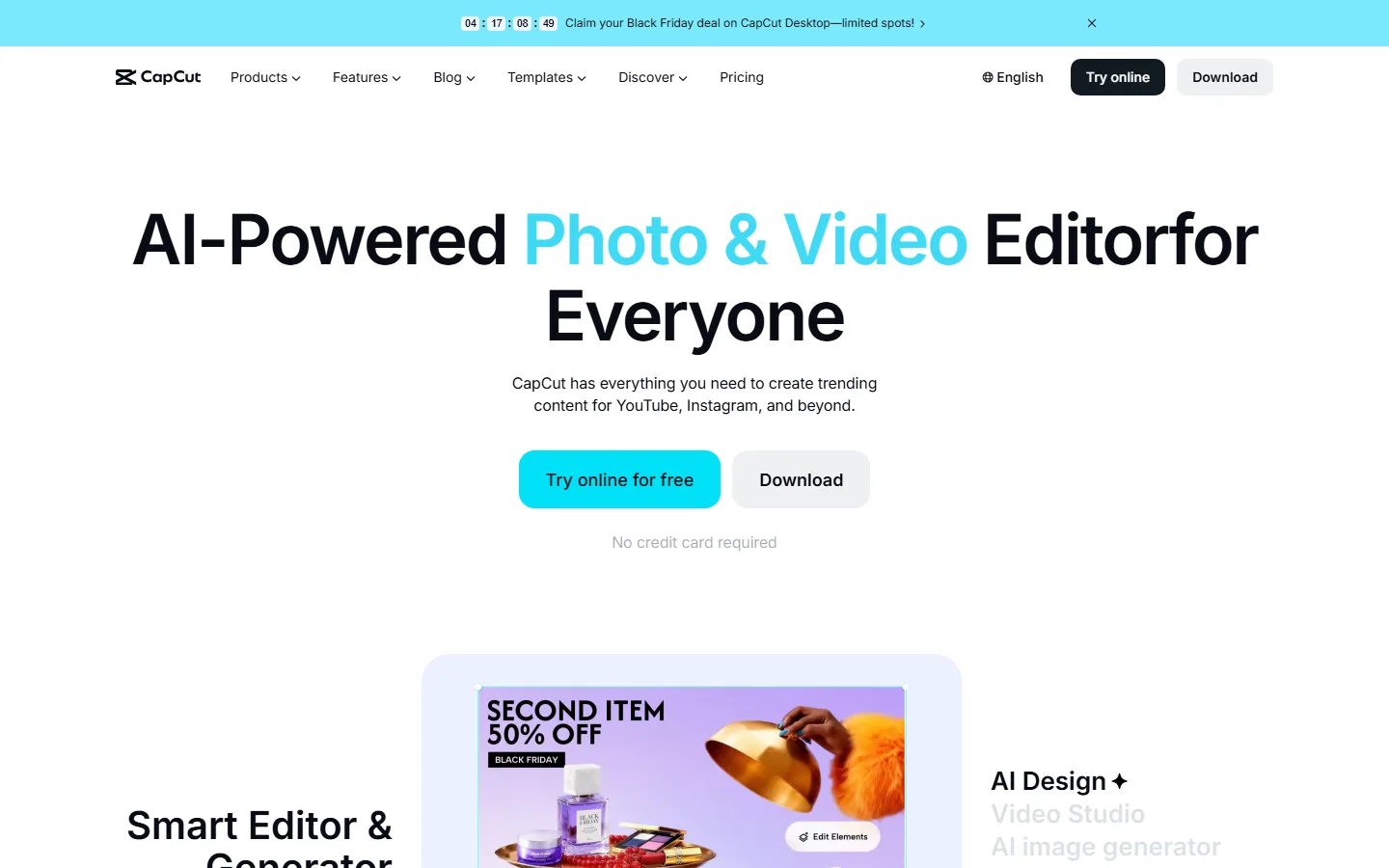
CapCut is the most complete free editing app on the market in 2026. It runs on mobile, desktop, and in the browser, and its free tier includes AI auto-captions at 92 to 95 percent accuracy, trending templates, effects, and background removal, with exports up to 4K and no watermark, all on CapCut. That combination is unmatched among free editors, which is why it appears in every serious 2026 roundup: GenMediaLab lists CapCut among the easiest editors to learn, and Nation AI calls it the most complete editing app on the market.
The learning curve is the other reason beginners pick it. Trimming, splitting, captions, music, and filters are all one-click features, and the template library means you can produce a complete TikTok or Reels-style video without learning anything about keyframes or color grading. The paid Pro tier exists, but the free tier covers the overwhelming majority of beginner use cases, from phone clips to YouTube Shorts.
What Does VEED Offer Beginners?
VEED is a browser-based editor that focuses on speed and simplicity, and it is particularly useful for people who do not want to install software. You upload a file, add captions, record your screen, and share a link, all inside the browser. Its AI features include auto-subtitles in many languages, background removal, translation, and a teleprompter, and the free plan lets you export videos up to 10 minutes with a watermark.
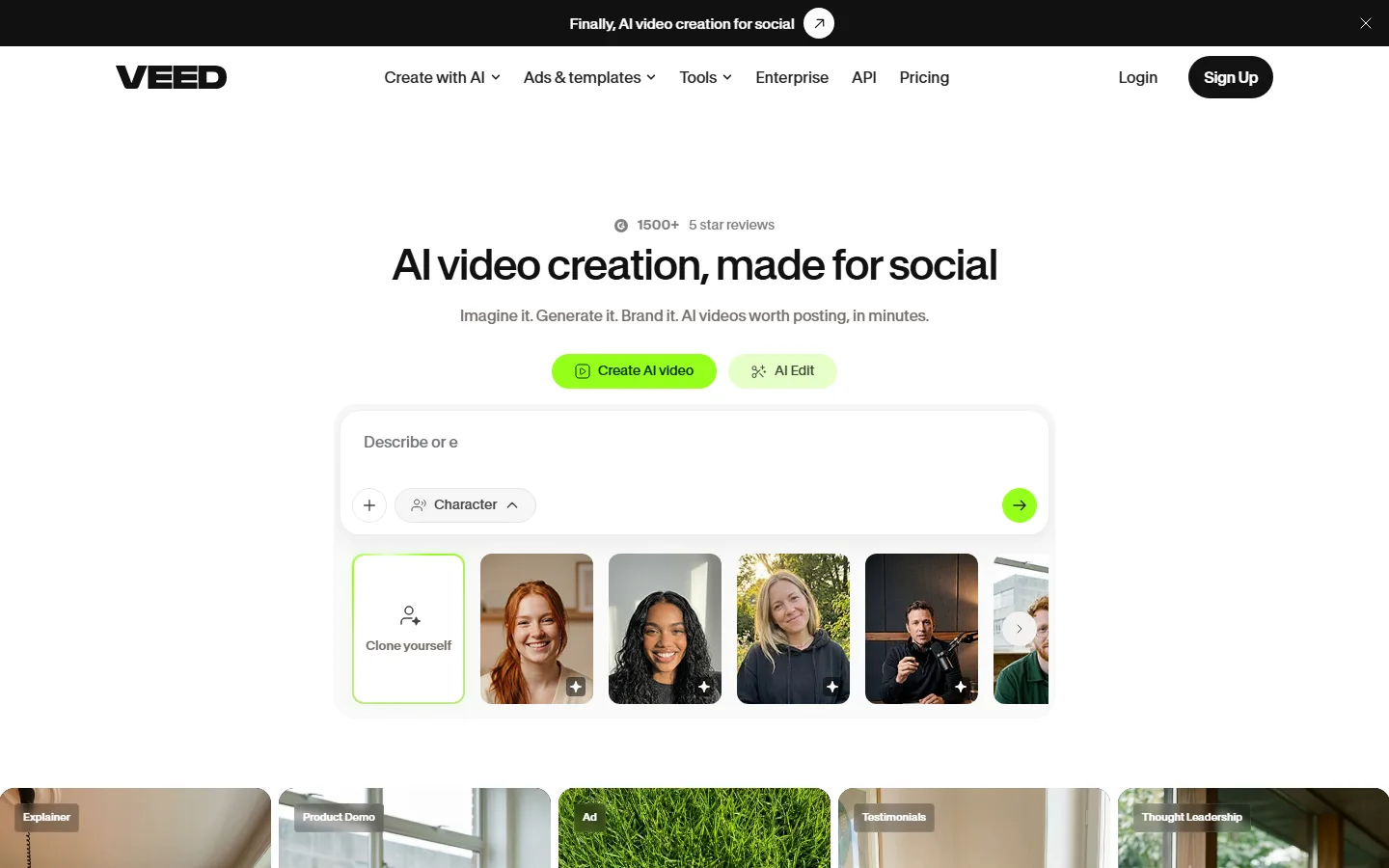
VEED's real advantage for beginners is the workflow around the editor. You can record a screen capture and edit it in the same session, invite collaborators on the same project, and share a preview link instead of exporting a file every time. That makes it the best choice for tutorial makers, course creators, and teams where several people touch the same video, even though serious color work will still send you to a desktop editor.
How Does Descript Make Editing Easier?
Descript treats a video like a document: you edit by editing the transcript. Delete a sentence in the text, and the corresponding footage disappears; type a correction, and Descript regenerates that segment of audio, a workflow described in the official Descript documentation. For interviews, podcasts, and long talking-head videos, this removes the biggest beginner obstacle, which is finding the exact frame where a mistake happens.
The free plan covers basic editing, and Descript's paid tiers add features such as filler-word removal, studio sound, and the AI voice tools. ToolChase's 2026 roundup names Descript the best overall AI video editor for most creators, precisely because editing video by editing text is that much easier for non-editors. The trade-off is that Descript is a transcription-first tool, so it is weaker than CapCut for fast, effect-heavy short-form content.
When Should a Beginner Use Generative Tools Like Runway?
Generative video tools such as Runway create footage from text prompts, and they are a different job from editing. Use Runway when you need a shot that does not exist, such as a product on a background you cannot film, not when you need to cut a talking-head video. Runway also includes AI effects for existing footage, which can polish a beginner project, and it has a free trial with plans starting around $12 per month.
The beginner trap is credit pricing. Generative tools charge per generation, and failures still consume credits. One widely shared complaint about a competing generator is that "Kling AI's credit system burns fast, 30-40% failure rate on credits," meaning nearly half of your paid generations can fail and still cost you. Before you buy any generative video credits, check the refund policy for failed generations and the actual cost per usable second of video. For editing your own footage, a credit-free editor such as CapCut, VEED, or Descript is always the safer starting point.
A second reason beginners should defer generative tools is learning order. Generative prompts, seed control, and upscaling assume you already understand shot composition, framing, and what makes footage usable; an editor beginner does not have that vocabulary yet, so the prompts come out vague and the results disappoint. Editing first builds the eye: when you cut a video, you learn pacing, angles, and what footage matters, and that experience transfers directly to writing better generative prompts later. In practice, beginners who learn editing with CapCut for a month write noticeably more specific generative prompts than those who start with text-to-video, because they finally know what they are asking for.
Which AI Video Editor Has the Easiest Learning Curve?
Based on 2026 testing roundups, the easiest editors are CapCut and Canva, which beginners can learn in minutes; Clipchamp is similarly approachable; and DaVinci Resolve has the steepest curve but the highest ceiling. For a beginner the practical sequence is: learn CapCut first for short-form and captions, add VEED when you need browser collaboration, and only learn a desktop editor when you start producing weekly videos and hit CapCut's limits.
| Tool | Best for | Free tier | Learning curve |
|---|---|---|---|
| CapCut | Short-form social video | Yes, 4K no watermark | Very easy |
| VEED | Browser editing, screen capture | Yes, 10-min export | Easy |
| Descript | Transcript-based editing | Yes, basic editing | Easy |
| Runway | Generative shots and AI effects | Free trial | Medium |
| Filmora | Beginner desktop editor | Trial with watermark | Medium |
| DaVinci Resolve | Professional free editing | Yes, full free | Steep |
Filmora is worth a mention as the friendliest desktop editor, with one-click background removal, smart motion tracking, AI audio enhancement, and auto-beat sync, aimed at beginners and small creators rather than professionals. If your videos are longer than 10 minutes or you want to edit offline, it is the upgrade path from the browser tools.
How Do I Make My First Video with AI Tools?
Follow the same loop every beginner should use: record, import, auto-caption, trim, export. Record with your phone, a screen recorder, or your webcam, whichever matches the video you want to make. Import the clip into CapCut or VEED, run auto-captions, and trim the silent parts and the mistakes. Add music from the built-in library, export in the format your platform wants, and publish. The whole loop takes under 30 minutes for a first video, and the AI features remove the two tasks beginners dread most, which are captioning and syncing audio.
For screen recordings, VEED is the smoother path because you record and edit in the same browser session. For phone clips, CapCut is better because its mobile app handles vertical video natively. Whatever you choose, keep the first video short, under 60 seconds, and resist adding effects until the basic cut is clean, because beginners spend more time in the effects menu than they spend on the story. One practical habit: export one test clip with auto-captions before you edit anything serious, so you learn the export and share flow early.
What About Mobile and Free Alternatives?
If you edit mostly on a phone, InShot is the simplest mobile editor, good for trimming, cropping, music, filters, and captions for quick social posts, while CapCut's mobile app offers more AI features in the same vertical format. Loopdesk's 2026 roundup of AI video editing apps calls InShot the best simple mobile editor, with the appeal of low friction rather than depth. Canva also deserves a mention: it is designed for beginners, takes minutes to learn the basics, and its video features let you assemble clips, captions, and branded templates in one canvas, which suits social teams and non-editors.
Beyond the editors in this guide, Clipchamp is the similarly approachable free option for Windows users, and DaVinci Resolve is the free professional editor with the steepest learning curve but the highest ceiling. The free tier of every tool on this list is enough to make your first ten videos, so the only reason to pay is a specific missing feature, not a general sense that free must be worse. When you do hit that point, upgrade the one tool you actually use daily, rather than subscribing to two editors at once, and cancel anything you have not opened in a month, because unused subscriptions are the most common way beginners waste money on editing software. A simple monthly rule keeps you honest: if a tool's monthly cost exceeds the time it saves you valued at your hourly rate, it is not worth keeping, and that test filters out most impulse upgrades before they renew, which is the discipline that separates creators who keep five subscriptions from those who keep one.
Frequently Asked Questions
What is the easiest AI video editor for a beginner in 2026?
CapCut and VEED are the easiest to learn. CapCut excels at free short-form editing with auto-captions, and VEED handles browser-based editing, screen recording, and sharing without any installation.
Is CapCut really free to use?
Yes. The free tier includes AI auto-captions, templates, effects, and background removal, and exports up to 4K with no watermark. A paid Pro tier adds advanced features, but beginners rarely need it.
Can I edit videos with AI without paying?
Yes. CapCut, VEED (limited), Descript (basic editing), and DaVinci Resolve all offer free tiers. Avoid generative tools for routine editing, because they charge per generation and failed generations still consume credits.
Should a beginner buy Runway or other generative video tools?
Only when you need footage that does not exist, such as text-to-video shots for a specific idea. For editing existing footage, a credit-free editor is cheaper and easier. If you do buy credits, check the failed-generation refund policy first.
How do I add AI captions to my video?
In CapCut, click the auto-caption button and it generates subtitles at 92 to 95 percent accuracy, which you can edit before export. VEED and Descript offer the same feature, and Descript embeds captions in its transcript-based editing workflow.
Conclusion
The best AI video editor for beginners in 2026 is CapCut, because it is free, easy, and covers short-form editing completely, with VEED for browser workflows and Descript for transcript-based editing as your next picks. Learn a generative tool like Runway only after you understand credit pricing, and treat failed generations as a real cost. For deeper comparisons, read our best AI video editors list, our Runway review, and the Runway vs Pika comparison. If you want to generate footage instead of editing it, see the best AI video generators, and read about AI video credits before paying for any generative plan.
Next step: open CapCut today, import one clip you filmed this week, add auto-captions, and export it to your phone. That is the whole beginner loop, and it takes under 30 minutes.